UniFi Protect
- 4.7
- Rating
- 1.00M
- Installs
- Free
- Price

 Analysis by App-foxy
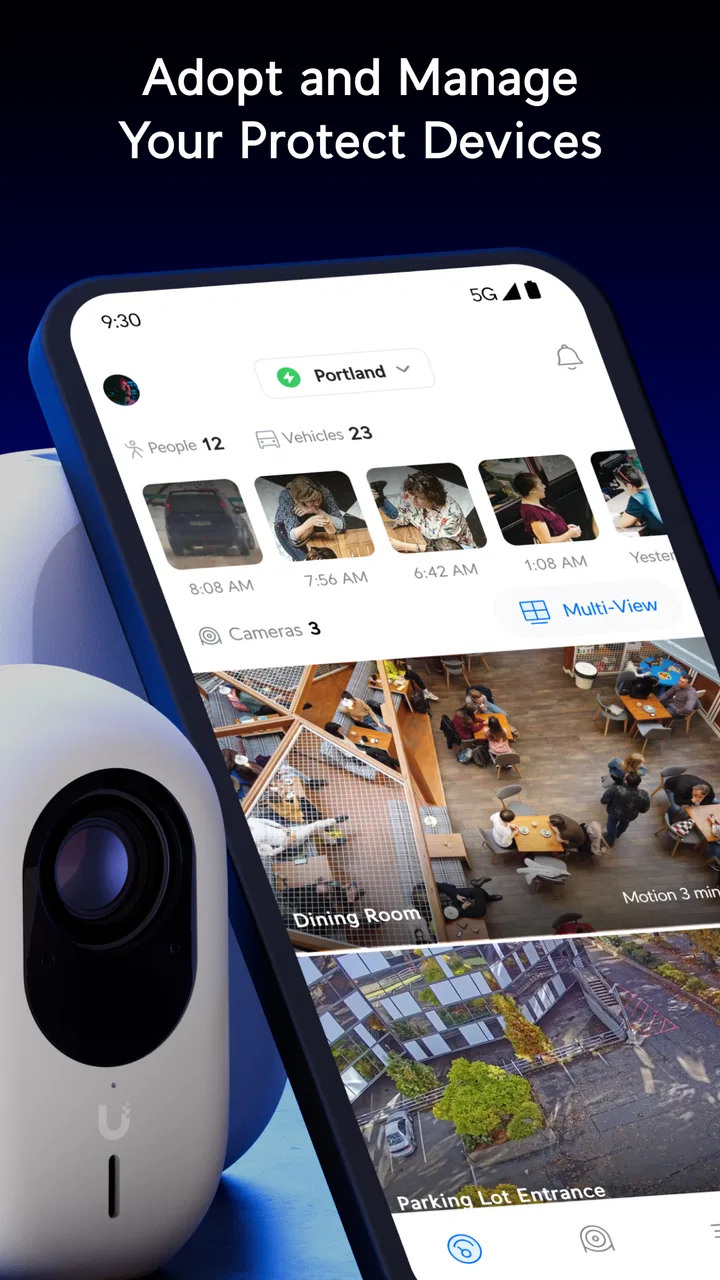
When a camera system becomes part of everyday home life, the difficult part is rarely seeing a live picture. The real test is whether the right people can check what matters without turning the household into a confusing web of shared passwords, missed alerts, and unclear responsibility. That is where UniFi Protect makes the most sense to me. It is a free lifestyle app from Ubiquiti Inc. for people who already use the UniFi Protect ecosystem and want a practical way to keep an eye on their cameras and related security equipment from a phone.
I spent time looking at it as a household tool rather than treating it like a simple camera viewer. That distinction matters. The app is not a general-purpose security service that works independently with any camera. Its usefulness depends on having compatible UniFi Protect equipment and an account arrangement that makes sense for the people who need access. Within that setting, it feels focused and much more purposeful than many generic smart-home apps.
Its store summary, “Simply Scalable Security,” is a fair description of the direction, although the experience is more practical than the phrase suggests. The app is currently at version 3.8.0, supports devices running Android 7.0 or later, and carries an Everyone content rating. It has earned a 4.7 average from around 23 thousand ratings, with more than a million installs, which gives me confidence that it has become a familiar tool for a substantial number of users.
You May Also Like

 Blood Strike: 2.5 Anniversary
Blood Strike’s Loadouts Turn Every Drop Into a Tactical Gamble
A close look at Blood Strike’s custom loadouts: how fast access to signature weapons reshapes its battle royale rhythm, rewards preparation, and narrows the gap between fights.

 Pandora - Music & Podcasts
Pandora’s Music Is Easy to Start, but Harder to Recover
Pandora’s strength is its low-effort path from a seed to a station. Its weak spot is how much confidence it asks you to place in connection, setup, and quiet recovery.

 8 Ball Pool
 Is Built on Rivalries, Rematches, and Routine
A close look at the rivalries, rematches, shared routines, and unanswered safety questions that turn a quick pool match into a persistent mobile community.

 Samsung Music
’s Quiet Strength Is Playing What You Already Own
Its reach comes less from spectacle than from dependable access to a personal library. That simplicity is both the app’s strongest retention engine and its ceiling.

 AccuWeather: Weather Radar
AccuWeather Review: A Quick, Clear Forecast for Everyday Decisions
For everyday plans, the best forecast is the one you can understand quickly. AccuWeather makes rain timing, radar, and local conditions easy to act on, with a few trade-offs.

 Hill Climb Racing
Why Hill Climb Racing Still Turns Crashes Into One More Run
A tiny car, a bumpy hill and one more upgrade: Hill Climb Racing keeps resurfacing because its simple chaos makes every near-miss feel personal.
More From Our News Desk



How UniFi Protect fits into a shared home
A realistic example is a household where one person originally installed the cameras, while other people gradually need access. Someone may want to check the front entrance when a delivery is expected. Another person may need to see whether a child arrived home. A housemate might only need occasional access to a shared doorway, while the primary account holder remains responsible for the system itself. In that situation, a mobile app has to support awareness without encouraging everyone to use one master login.
My first practical recommendation is to decide who genuinely needs access before inviting everyone into the system. A shared household does not automatically mean a shared account. Keeping personal account boundaries clear is healthier than passing one password around, especially when the cameras cover spaces that affect everyone’s privacy. UniFi Protect works best when the household treats access as a responsibility, not as a convenience to distribute casually.
The app is particularly useful for a person who is away from home but still needs a quick view of what is happening around the property. I can imagine checking the entrance while travelling, reviewing an event after hearing a notification, or confirming that a common area is quiet before calling another household member. Those small checks are where the app earns its place. It reduces the need to open a laptop or ask someone else to inspect the system.
There is also a useful difference between monitoring and coordination. Seeing a camera feed does not automatically tell the household what to do next. If one person notices activity, that person may still need to message another family member or housemate. I would therefore use UniFi Protect as the visual source of information, while keeping household communication in the messaging system everyone already understands. Trying to make the camera app carry every conversation would create unnecessary confusion.
What the setup demands from the household
The first boundary is equipment. UniFi Protect is not the right download for someone who simply wants to connect a random Wi-Fi camera. It belongs to Ubiquiti’s own camera and security environment, so the app makes the most sense after the underlying Protect system is already in place. If you are comparing camera platforms from scratch, you need to evaluate the hardware, controller arrangement, and account structure before judging the phone app alone.
That dependence is both a strength and a limitation. The strength is consistency: the app is designed around one ecosystem instead of trying to support every manufacturer’s interpretation of cameras, events, and access. The limitation is that it is not a flexible drop-in viewer for an existing collection of unrelated devices. If your home already relies on another brand, moving only for the mobile experience may not be worthwhile.
During setup, I would avoid creating a household account that everyone uses. A primary administrator should keep control of the system, while other people should receive only the access they actually need. Even when a family trusts one another, separate identities make it easier to understand who is using the system and easier to remove access when a living arrangement changes. This is especially important in shared homes, where a former housemate should not remain connected simply because nobody remembered to update one password.
Another sensible boundary is camera placement. The app can make access feel effortless, but effortless access should not lead to cameras being pointed at bedrooms, private workspaces, or areas where people reasonably expect personal space. I would discuss placement with everyone who lives in the home before installation. A technically capable security system can still create household friction if the people being recorded were never included in the decision.
Notifications deserve the same care. A person who receives every possible alert may quickly stop paying attention, while a person who receives none may miss something important. I would begin with the alerts that support a clear action, such as checking an entrance or confirming an unexpected event, and then adjust after observing normal household activity. The goal is not to make the phone constantly announce movement; it is to make important changes easier to notice.
Coordinating access without losing control
One of the less obvious lessons from using a security app in a shared environment is that technical access and household authority are different things. A teenager might be trusted to look at the front door, but that does not necessarily mean they should manage the entire system. A cleaner or dog walker may need a temporary arrangement coordinated by the homeowner, but that does not mean they should be treated like a permanent household administrator.
I would establish a simple rule: the person responsible for the UniFi Protect installation owns the configuration decisions, while other residents use the app for agreed-upon daily checks. That division avoids accidental changes and gives everyone a clear point of contact when something behaves unexpectedly. It also prevents the common mistake of letting the most technically confident person become the permanent gatekeeper for everyone else.
For a couple or family, a short conversation can prevent many problems. Decide which cameras are appropriate for routine viewing, who should receive alerts, and who will handle maintenance questions. These are not glamorous details, but they matter more than a polished interface when the system is used every day. A camera app becomes dependable when the people around it understand their roles.
I also prefer coordinating around events rather than watching continuously. Constant live viewing can become distracting and may encourage people to monitor one another instead of using the system for safety. A better routine is to open the relevant view when there is a reason: a delivery, an unusual sound, a question about the entrance, or a need to check a shared space. That keeps the app useful without allowing it to dominate household life.
For older relatives, the app can be helpful if their role is limited and clearly explained. I would show them the few screens they actually need instead of presenting every available option at once. The best training example is concrete: “Open this view when you want to check the front door.” That is easier to remember than a broad explanation of the entire security system.
For younger users, I would be more cautious. The Everyone rating describes the app’s content suitability, not a promise that every household should give every child unrestricted access. Age, maturity, privacy, and the purpose of the camera all matter. A child may be able to use a live view responsibly, but that decision should come from the parent or guardian and the household’s own rules, not from the age label alone.
Trust, privacy, and everyday boundaries
Security cameras can protect a home while also changing how comfortable that home feels. My biggest concern is not whether a person can open the app quickly; it is whether everyone understands when viewing is appropriate. The app should support safety, not become a silent way to supervise family members or housemates throughout the day.
I would avoid presenting cameras as a tool for catching people out. In a shared home, that attitude can damage trust faster than it improves security. Instead, explain what each camera covers and why it exists. If the purpose is to monitor an entrance, keep the conversation focused on the entrance. If a camera covers a common room, agree on how that view will be used. Clear expectations are more valuable than vague assurances.
Account boundaries are equally important when relationships change. A guest who once needed access may no longer need it. A housemate may move out. A family member may replace a phone. These moments are easy to overlook because nothing appears broken. I would include access review in the same routine as checking batteries, camera angles, and notification behavior. The app can only reflect the access decisions the household makes around it.
There is also a practical trust issue when several people receive the same event information. If one person sees activity and another person is already handling it, duplicate reactions can create unnecessary worry. A household message such as “I checked the entrance” can be more useful than multiple people independently investigating the same alert. UniFi Protect provides the observation; the household still needs a simple way to coordinate the response.
For people who are particularly sensitive about privacy, I would recommend starting with the least intrusive camera placement and the smallest group of users. Expand only when there is a clear benefit. This gradual approach is better than installing cameras everywhere and trying to negotiate boundaries after the fact. It also gives the household time to learn whether the system genuinely helps or merely adds another source of anxiety.
Where it stands beside ordinary alternatives
Compared with a generic camera app, UniFi Protect feels more appropriate for someone who wants a connected security environment rather than a single inexpensive camera. A basic consumer camera application may be easier for a first-time buyer because it usually centers on one device and a simplified setup. That can be the better choice for a renter, a small apartment, or anyone who only needs to glance at one room.
UniFi Protect becomes more attractive when the home has several viewing points and the owner values a unified system. The app’s identity is tied to Ubiquiti’s broader approach, so it is less about adding one isolated gadget and more about giving a household a consistent way to interact with its security equipment. That consistency can reduce the awkwardness of switching between separate manufacturer apps, although it also means accepting the boundaries of one ecosystem.
It is not a replacement for a full alarm-monitoring service, a professional response plan, or a household communication platform. I would not choose it expecting the phone app alone to solve every security question. It is a control and viewing layer for a UniFi Protect installation. If you need emergency dispatch, formal monitoring, or a service that takes responsibility for responding to events, you should look beyond this app.
It may also be excessive for someone who dislikes managing network equipment or does not want to think about account roles, camera placement, and notification choices. The free download is appealing, but the complete experience depends on the wider hardware setup. “Free” should not be interpreted as “no overall investment.” For an existing UniFi household, that distinction is obvious. For a newcomer, it should be part of the buying decision.
Small habits that make the app more useful
My first useful habit would be creating a household viewing routine around specific locations. Instead of opening the app and searching through every camera, decide which view answers the most common question: the entrance for deliveries, the driveway for arrivals, or another shared area for a quick safety check. This makes the app feel like a practical tool rather than a catalogue of feeds.
A second habit is to review access whenever the household changes. Do this after a move, a new phone, a change in caregiving arrangements, or the end of a temporary visit. Treat access as something that expires conceptually even when the software does not force you to revisit it. That simple discipline is one of the strongest ways to keep a shared security system understandable.
A third is to test the human response, not only the technology. If an alert appears while everyone is busy, who notices it and what happens next? If nobody knows whether someone else has checked, the system is not fully coordinated. A quick household agreement about who investigates different situations can prevent duplicated worry and reduce the temptation to watch the app constantly.
I would also keep the app’s purpose narrow for children and occasional users. Show them how to view an agreed camera and how to ask an adult for help, rather than treating the phone as a complete security console. This protects the household from accidental changes and keeps the experience age-appropriate without pretending that the app itself provides family-management tools.
Who should install it and who should skip it
I would recommend UniFi Protect to a household that already uses compatible Ubiquiti security equipment and wants mobile access that fits into a larger, organized setup. It is a good match for homeowners who care about clear account responsibility, several camera locations, and the ability to check the property while away. It can also suit a shared home where people are willing to agree on privacy and notification boundaries before using it.
I would be more hesitant to recommend it to someone looking for the simplest possible single-camera experience. If your priority is opening one inexpensive camera app with almost no ecosystem commitment, a more narrowly focused consumer option may feel easier. I would also steer away from it if you expect the app to work with equipment from many unrelated brands or if you want professional monitoring rather than self-managed viewing.
The app is free and suitable for Everyone, but those facts do not remove the need for adult judgment in a shared household. Parents and guardians should decide what younger users can see. Homeowners should decide which guests or workers need access. Housemates should discuss privacy before cameras are installed. Those decisions are not flaws in the app; they are part of using any connected camera system responsibly.
UniFi Protect was released on August 14, 2018, and the current version, 3.8.0, shows that it remains an active part of the UniFi experience. The developer is Ubiquiti Inc., and the app’s strong average rating suggests that many users find its overall direction dependable. I would still judge it by ecosystem fit first, because a high rating cannot make incompatible hardware or unclear household rules disappear.
After considering it as a shared-home app, my view is positive but specific. Its real strength is organized access to a UniFi Protect security setup, not universal camera compatibility. When the equipment, accounts, and household expectations are aligned, it gives people a convenient way to check what matters without needing a computer. When those foundations are missing, the free download alone will not deliver the same value.
For my own recommendation, I would tell a friend to install it if they already live inside the UniFi ecosystem and are prepared to treat access as a household responsibility. Start with a small group of trusted users, agree on camera boundaries, keep alerts purposeful, and use messages for coordination rather than expecting the app to manage family communication. Used that way, it is a focused and capable companion for everyday home awareness.
FAQs for UniFi Protect
01What is UniFi Protect, and what can I use it for?
UniFi Protect is Ubiquiti’s video surveillance and security management platform for UniFi cameras, doorbells, sensors, and related devices. After installation, it lets you view live camera feeds, review recordings, receive motion notifications, manage users, and configure supported security hardware from a phone or tablet. It is mainly designed for homes, offices, and businesses using a UniFi Console, rather than as a standalone camera app.
02Do I need additional UniFi hardware to use the UniFi Protect app?
Yes. The UniFi Protect mobile app generally requires a compatible UniFi Console or NVR running Protect, such as a CloudKey Plus, Dream Machine Pro, Dream Machine Special Edition, or another supported device. You also need compatible UniFi cameras or security products connected to that system. Installing the app alone will not provide surveillance features, and compatibility can depend on your console model, Protect version, and camera generation.
03Can I watch my cameras remotely when I am away from home or work?
Remote viewing is one of UniFi Protect’s main advantages, provided your Protect system is online and properly linked to your Ubiquiti account or remote-access configuration. From the app, you can usually open live views, check recorded events, and receive alerts while away. Performance depends on your local upload speed, mobile connection, console availability, and any network or privacy settings you have configured.
04Does UniFi Protect require a subscription or cloud storage plan?
UniFi Protect is generally marketed without a mandatory recurring cloud-storage subscription for recording when you use compatible local UniFi hardware and storage. Recordings are stored on the console or NVR, so available capacity depends on the installed drive and camera settings. Optional online account services and remote access may still require an internet connection, and hardware, replacement storage, or additional accessories can involve separate costs.
05What should I know about notifications, privacy, and app permissions?
UniFi Protect may request permissions for notifications, local network access, and other functions needed to discover devices, display alerts, or connect to your Protect console. Notifications can be customized for motion, people, vehicles, doorbell activity, and other supported events, although excessive sensitivity may create false alerts. Because surveillance footage can contain private information, use strong account security, limit user access, update devices, and follow local recording laws.
Pros
- Reliable live viewing and playback for UniFi cameras
- Clean interface with useful event and motion filters
- Supports smart detection for people
- vehicles
- and packages
- Local recording avoids mandatory cloud storage subscriptions
- Works well with other UniFi Protect devices and doorbells
Cons
- Requires compatible UniFi hardware to unlock its main features
- Remote access depends heavily on a stable internet connection
- Advanced camera settings can feel limited for power users
- Notifications may become frequent in areas with constant movement
- Some features vary depending on the camera and console model

UniFi Protect
Gallery